Your cart
Your cart is empty
Continue shopping
Drawer menu
Low stock
Estimated delivery: 15-25 business days (international shipping)


Innovative Technology
User-Friendly Design
Reliable Performance
Couldn't load pickup availability
Brand Name: keweisi
Certification: RoHS,ce
Choice: yes
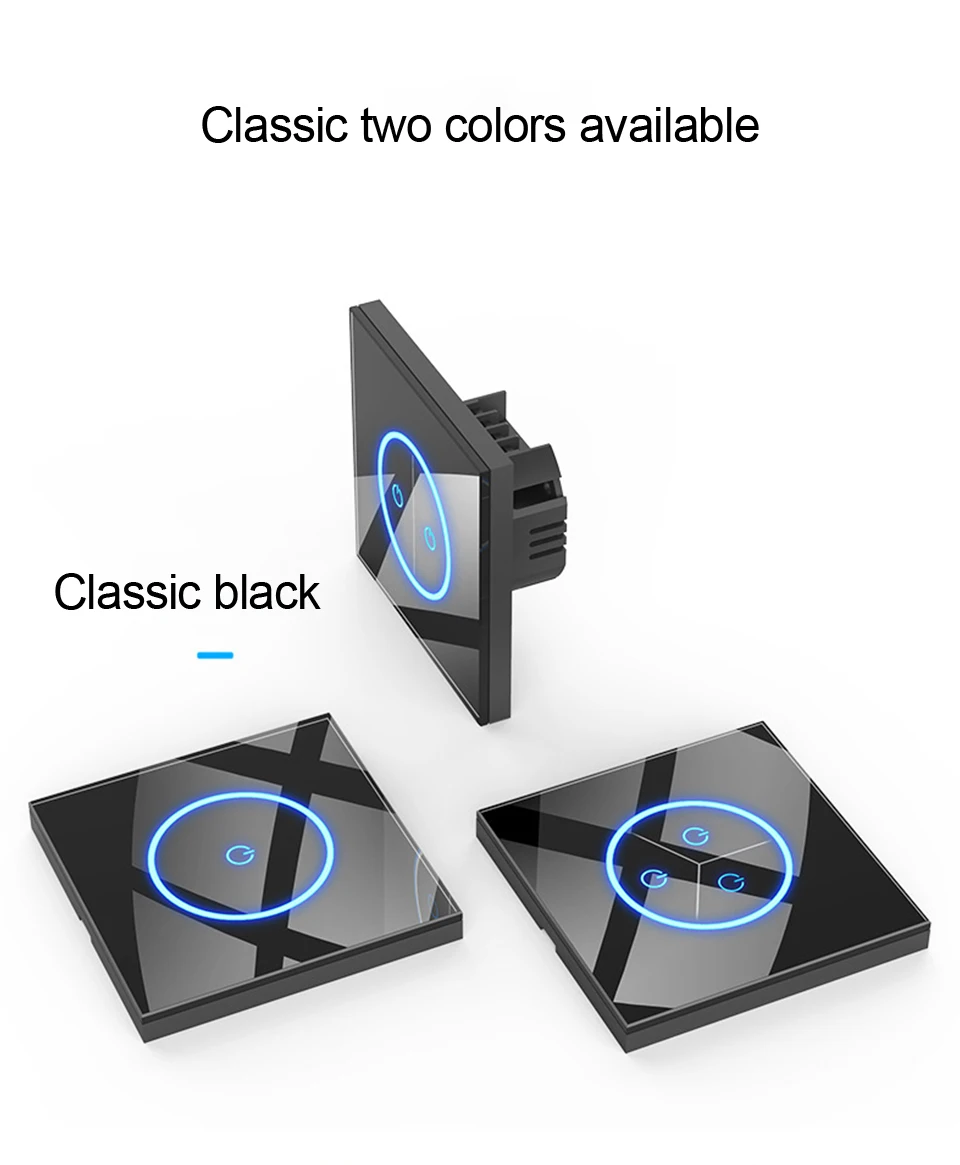
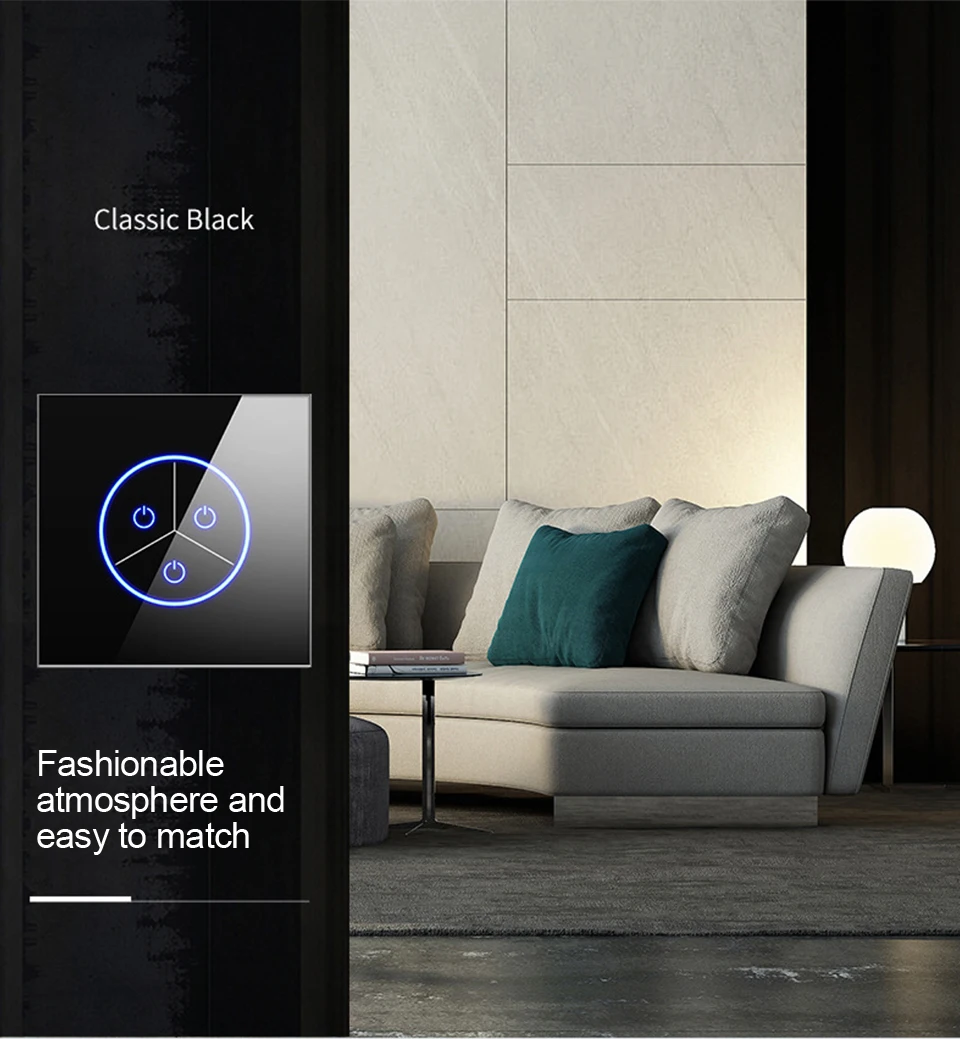
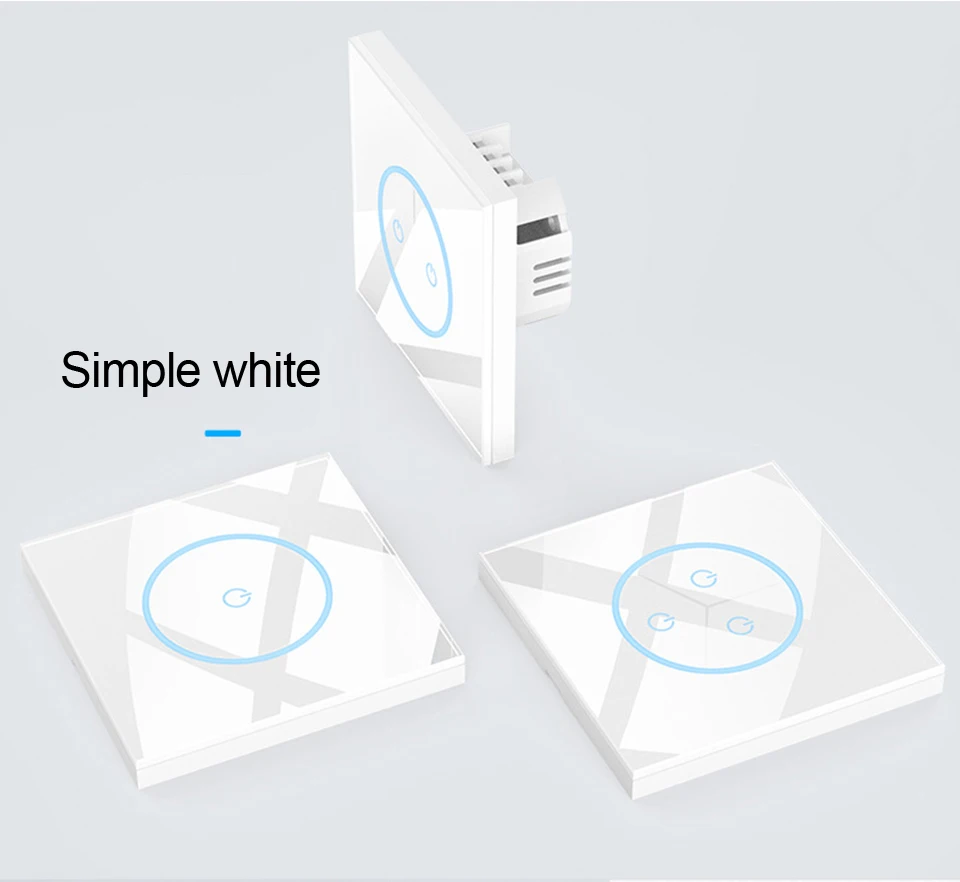
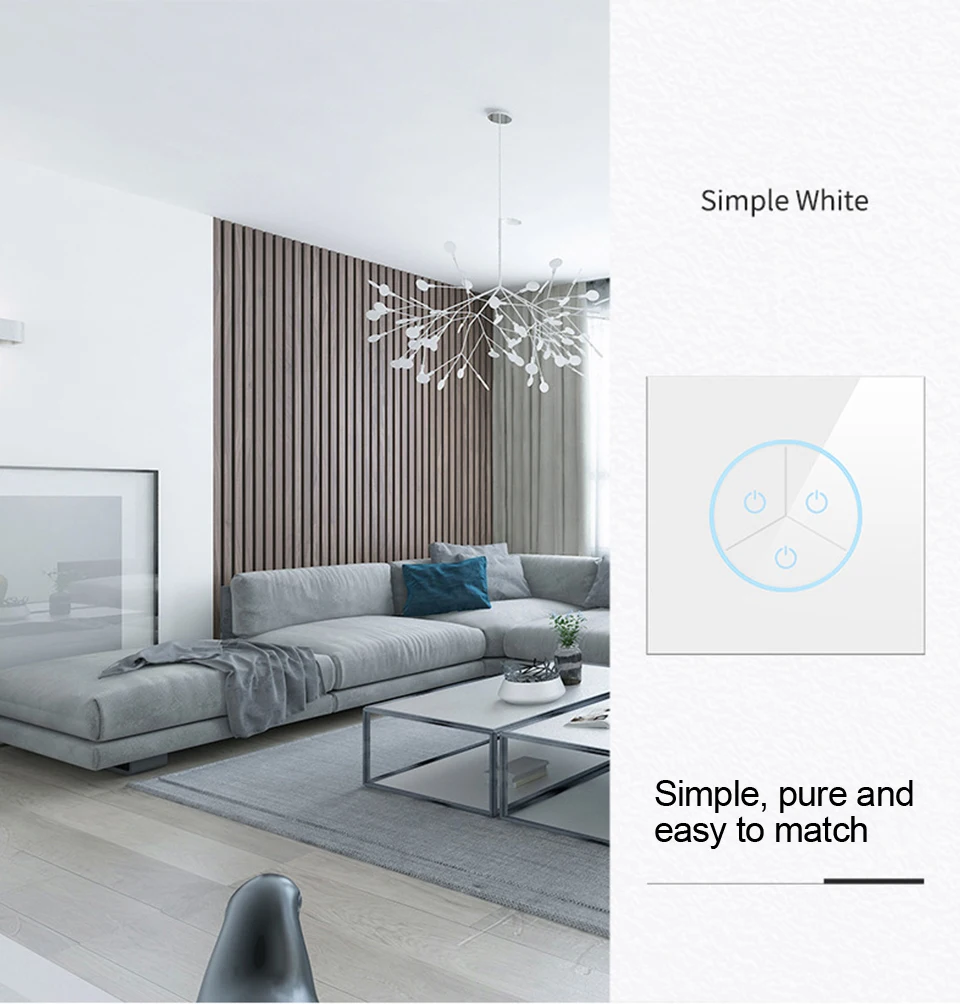
Color: Classic black/simple white
Copper material: all bronze
Current: 10A
Electric life: 100,000 times
Features: Smart wifi touch switch
Installation hole distance: 60mm
Is Smart Device: Yes
Item Type: SWITCHES,Touch switch smart life
Material: Plastic
Model Number: Tuya Smart Life Wifi Switch
Origin: Mainland China
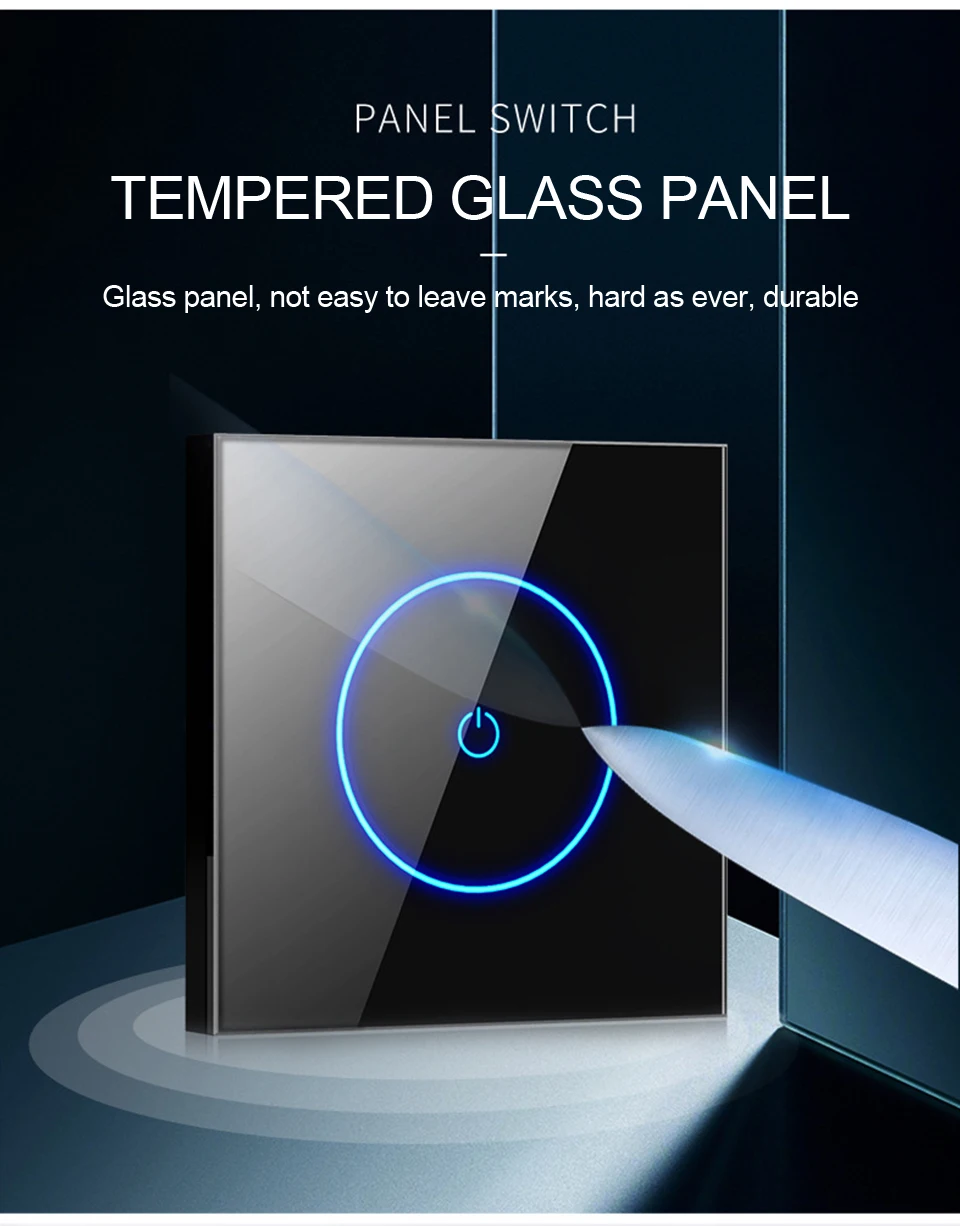
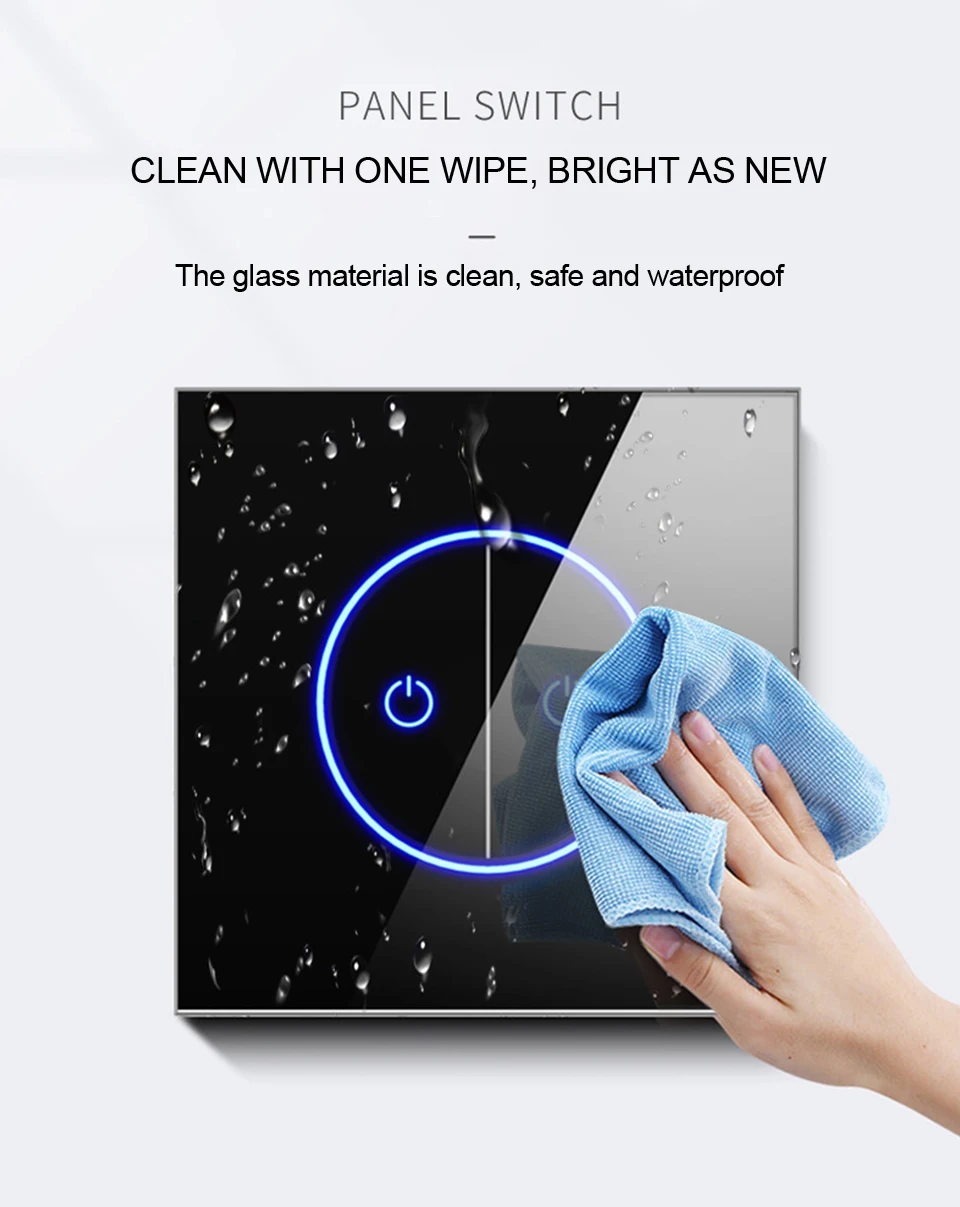
Panel material: Tempered glass
Rated voltage: 110V-250V
Shell material: PC fireproof, high temperature and flame retardant
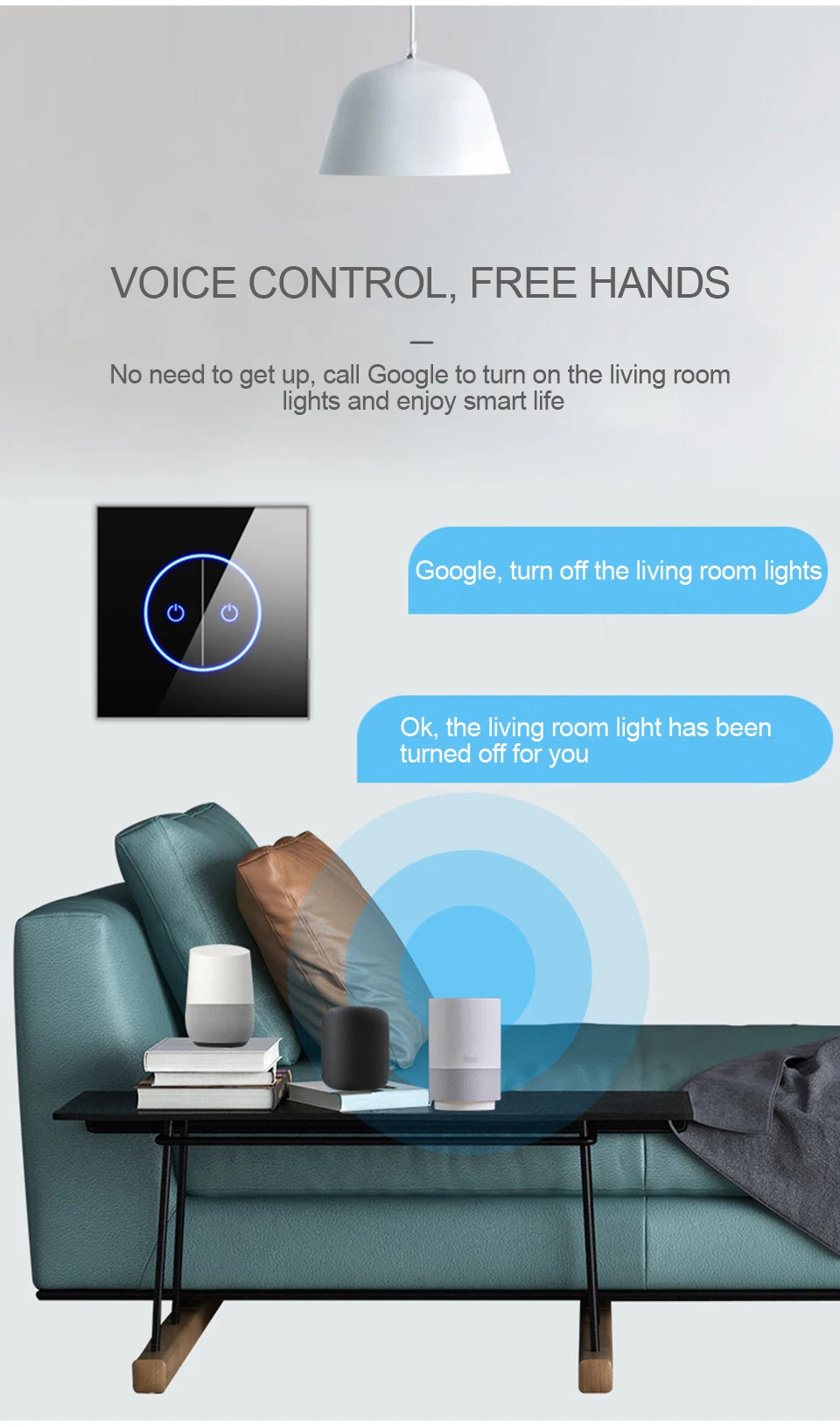
Smart AI speaker: Support Tmall Elf, Aalborg Elf, Amazon, Google voice control
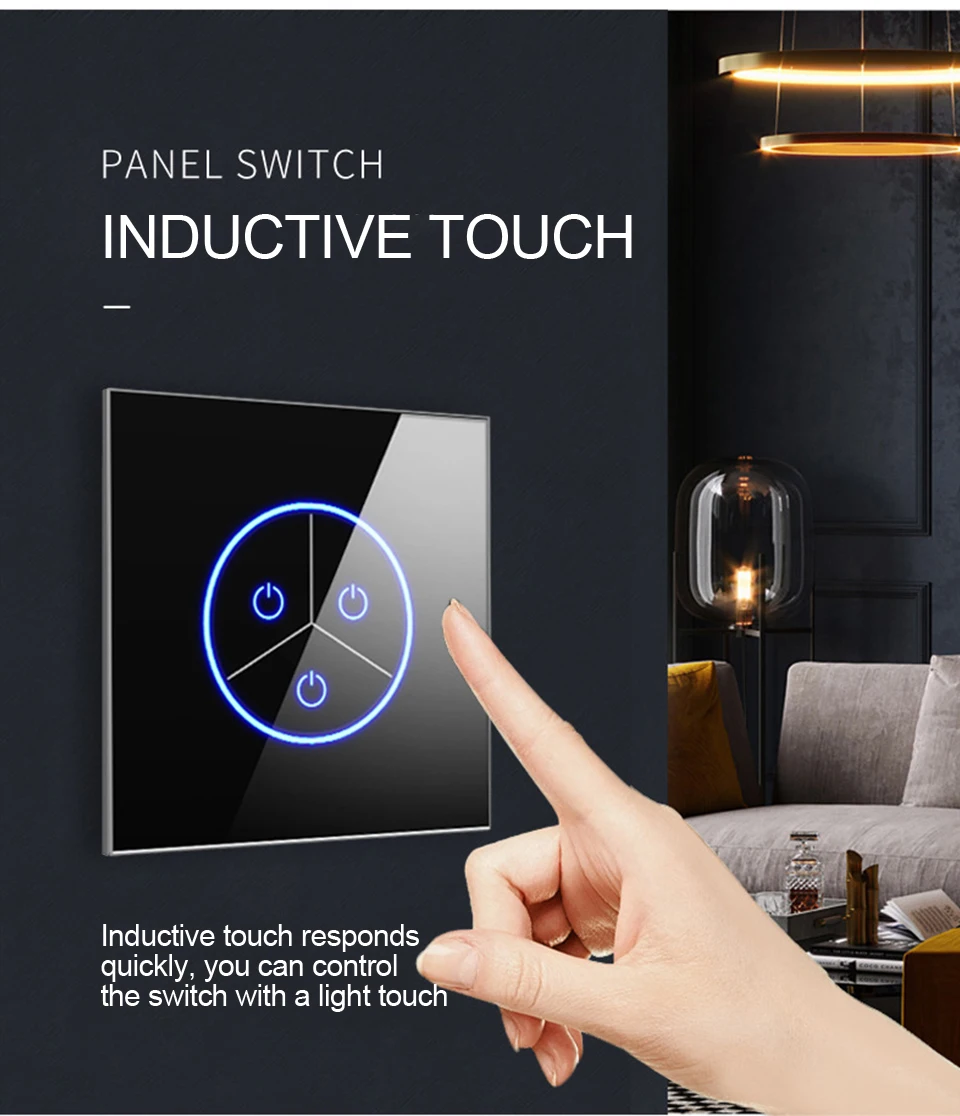
Start method: Capacitive touch
Switch Type: Touch On/Off Switch
semi_Choice: yes
series: Smart wifi touch switch
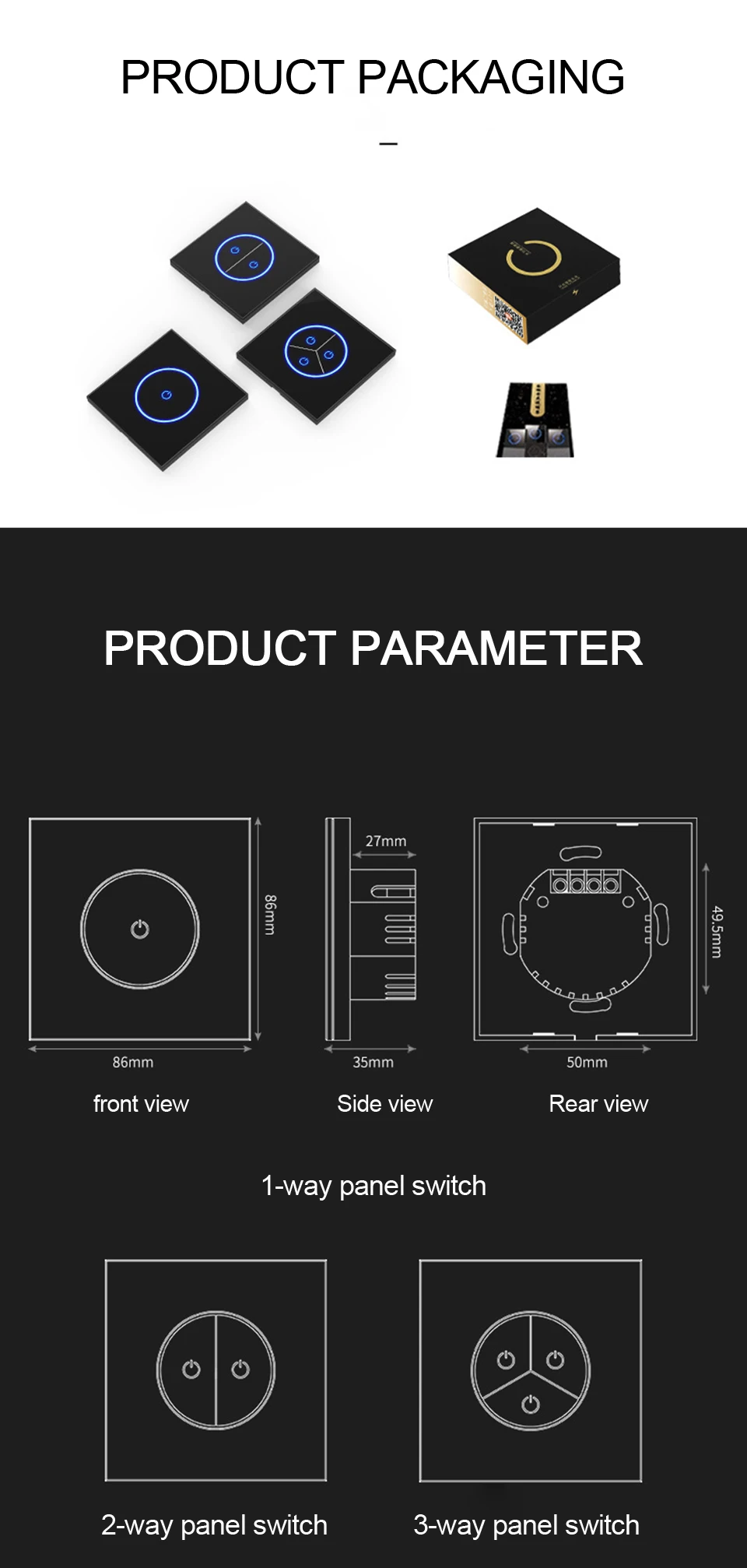
specification: 86X86X34mm
weight: 180g/190g/200g
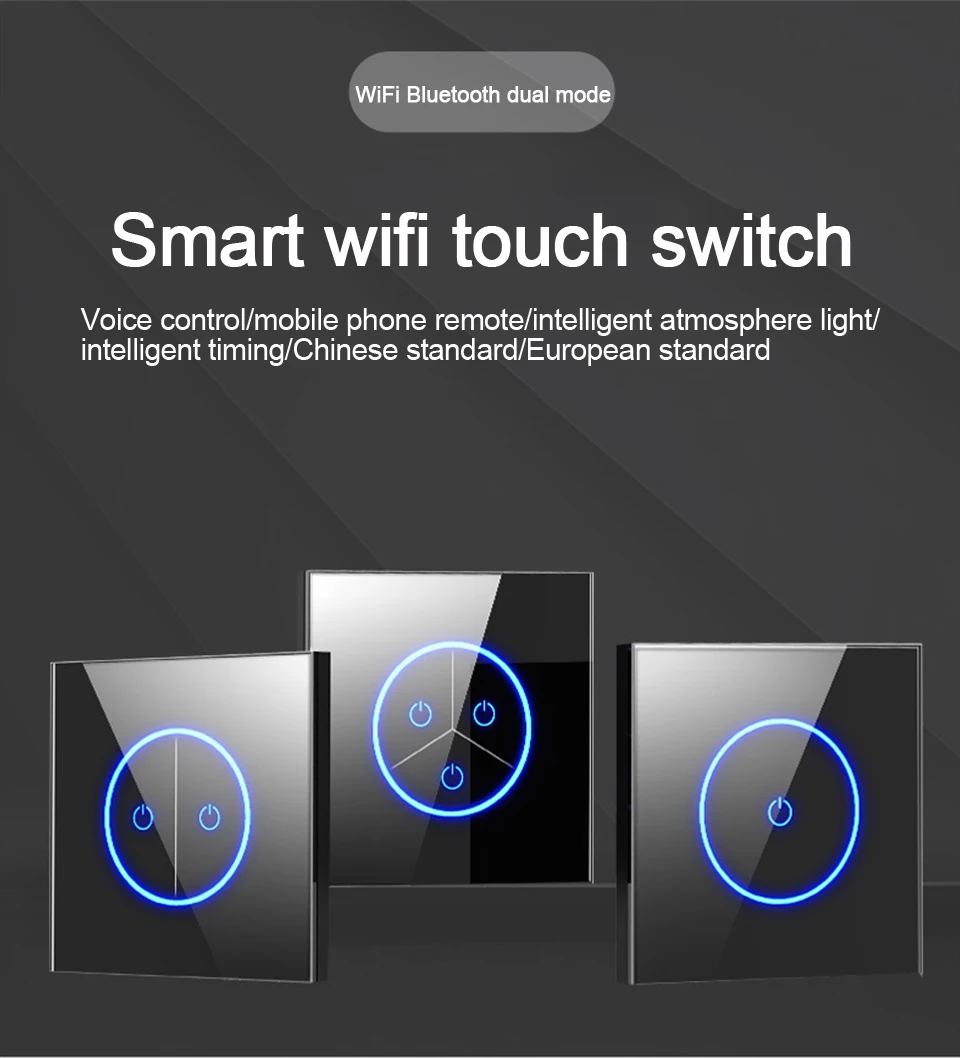
Smart WIFI Bluetooth Switch 10A 1/2/3Gang Light Switch APP Remote Wireless Wall Glasses Panel Smart Home Remote Voice Control
Highlight:
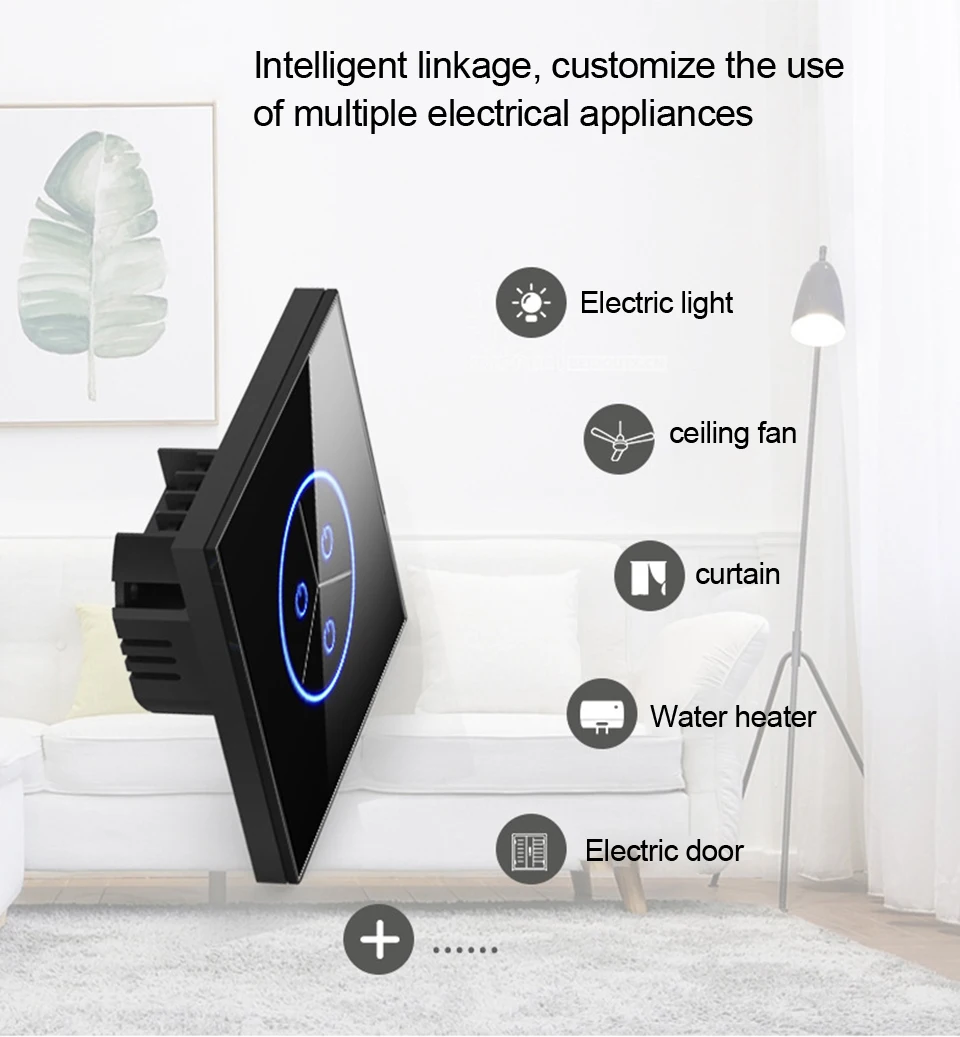
1. This switch has "Multiple Control Association" functions.
Specification
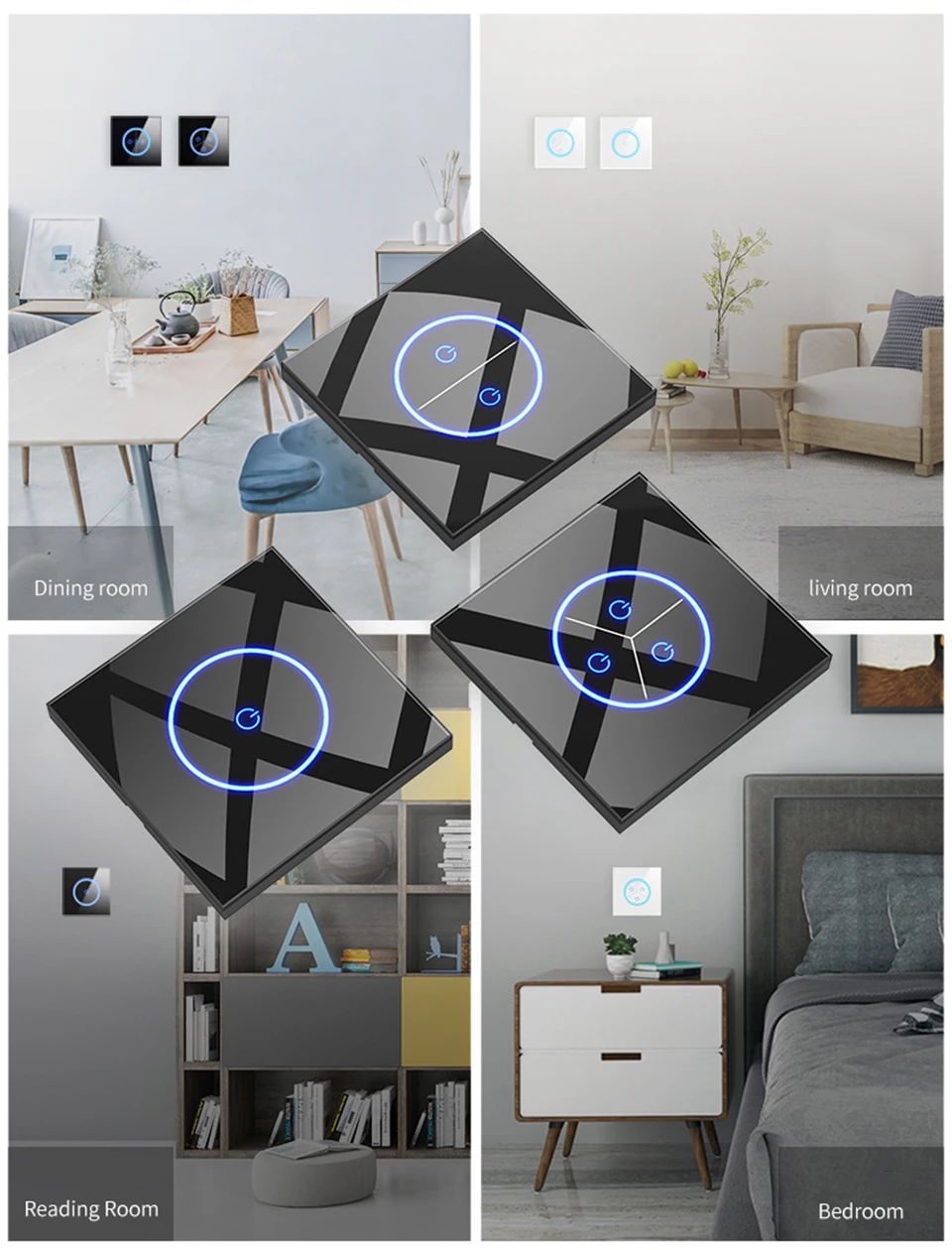
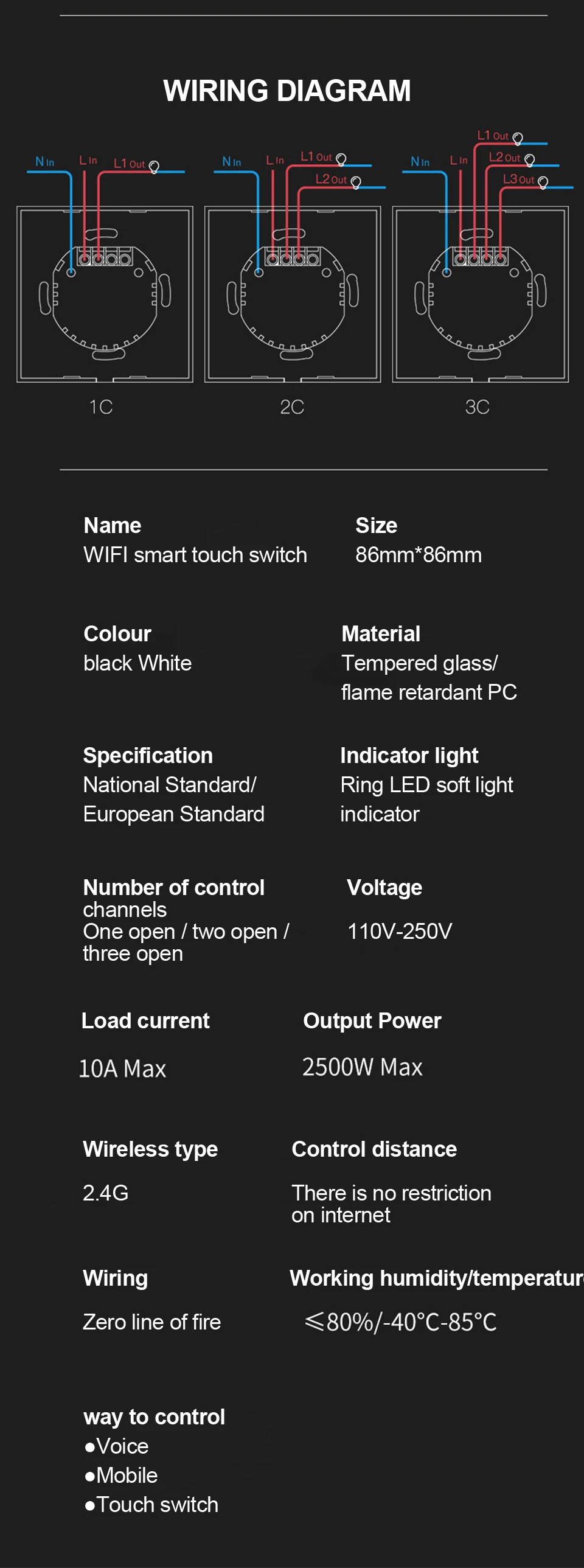
product name:Smart WIFI touch switch
size:Type 86/86mm*86mm
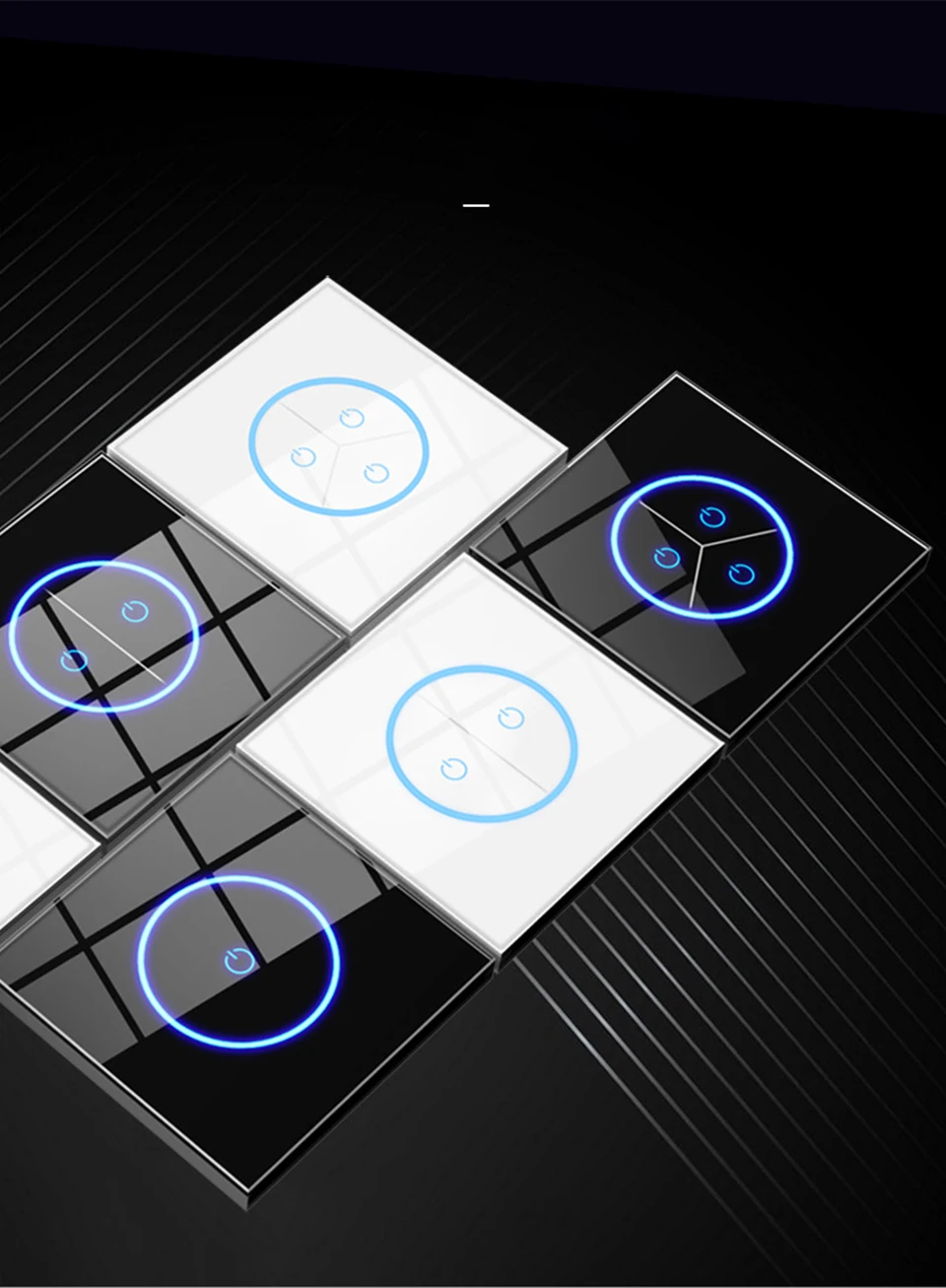
colour:Classic black/simple white
Material:Tempered glass/flame retardant PC
specification:National standard/European standard
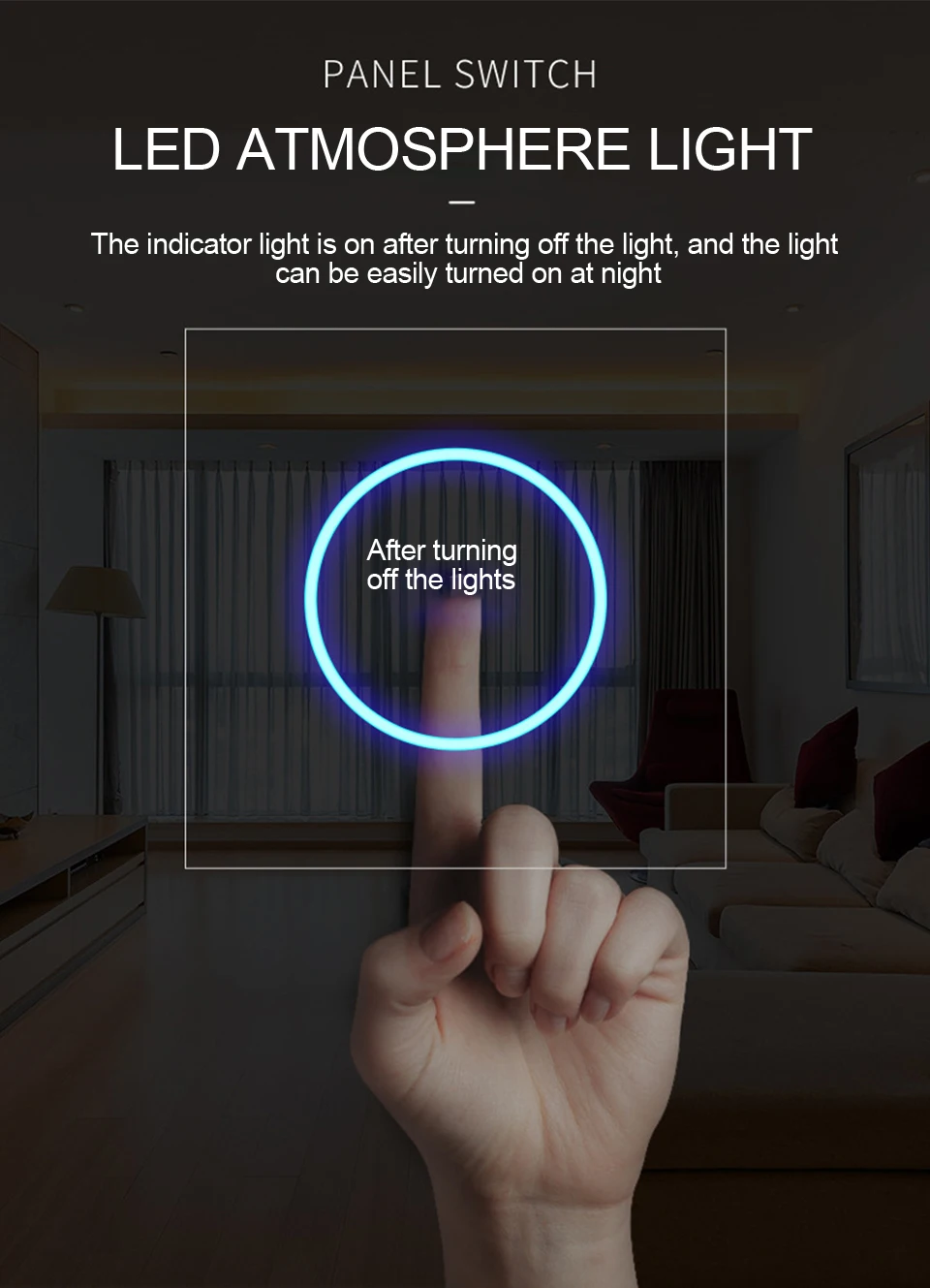
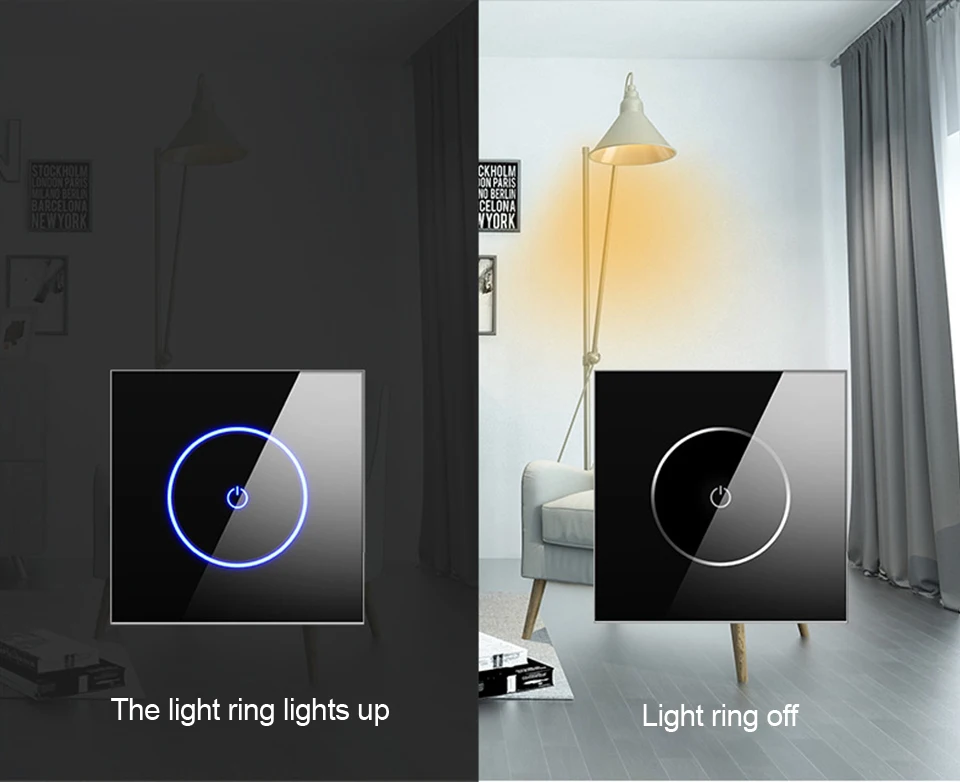
Indicator light:Ring LED soft light indicator
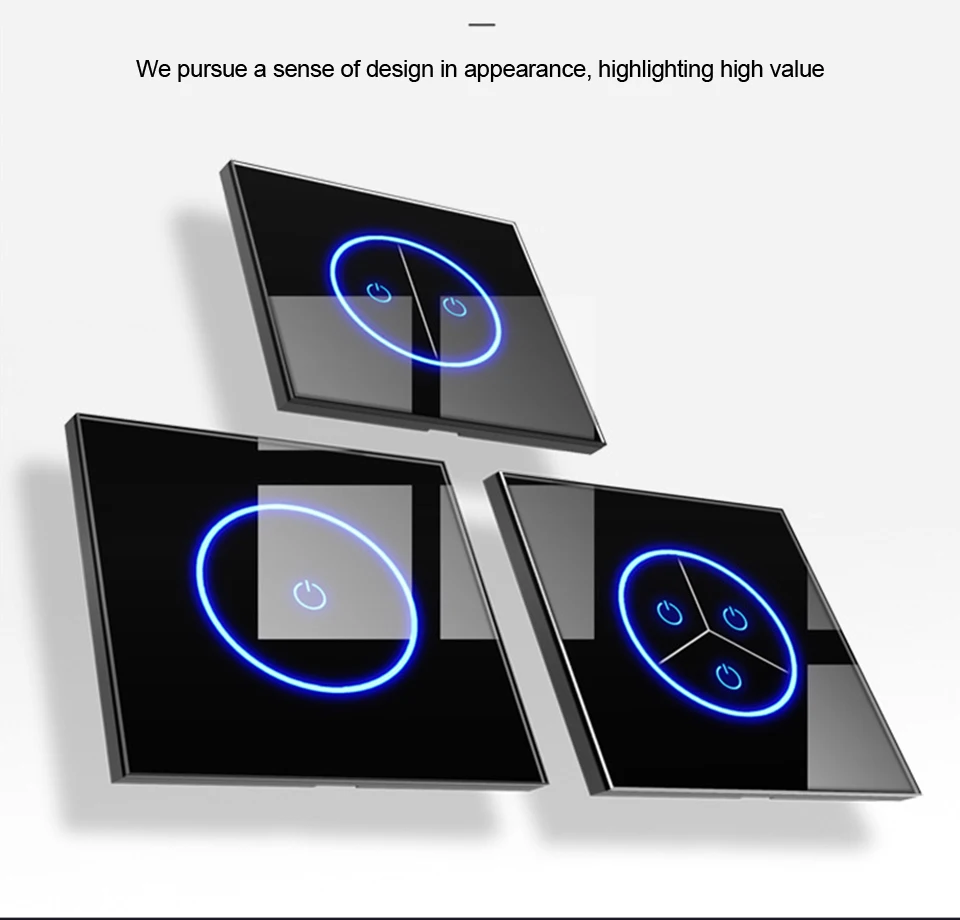
Number of control channels:One open / two open / three open
Voltage:110V-250V
Load current:10A MAX
Output Power: 2500W MAX
Instructions for use
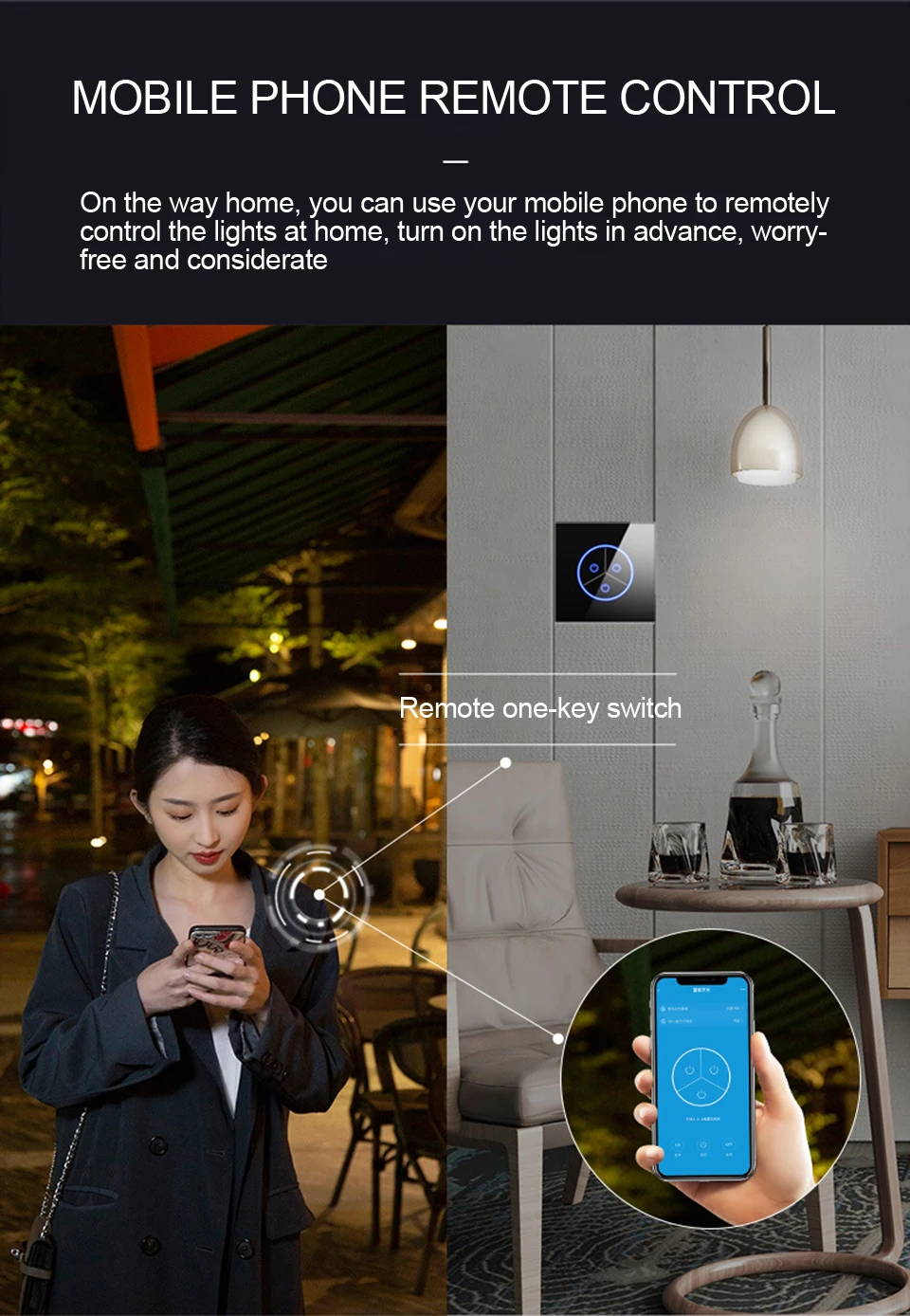
APP Control Mode
1. Scan the Qr Code on your phone, or search for ''Cloud Intelligence'' in the APP market, download the APP and sign up
2. Install the equipment, make it electrify, can use normally, long press any key of the equipment to light with flashing, enter Distribution Network State (Fast Flicker: Bluetooth-Config, SlowFlicker: Smart-Config)
3. Open the ''Cloud Intelligence'' APP, enter the home page, click ''+''in the upper right corner to automatically discover the device, or click to add manually and select ''obbo Smart Switch''
4. According to the interface prompt, enter the password of the home 2.4G wireless network, the device will connect to the wireless network
5. After setting the device name and location of the room, the device is added successfully
6. Once added successfully, the device can be controlled
Intelligent Speaker Voice Control
Amazon alexa
1. Bind device: bind the device through the ''Cloud Intelligence'' APP, add it to the device list on the home page, and you can rename it, such as ''My Smart Switch''
2. Tum on the ''Cloud intelligence'' Skill, you need to have an Amazon Echo speaker, then search for ''Cloud Intelligence'' the skills section of the Alexa APP and Click ''Enable''
3. Link an account: enter the account name and password of the ''Cloud Intelligence'' APP to associate ''Cloud Intelligence'' with ''Alexa''
4. Voice control device: after association, voice control can be performed on the device bound to ''Cloud Intelligence APP
Google Assistant
1. Bind device: bind the device through the ''Cloud Intelligence'' APP, add it to the device list on the home page, and you can rename it, such as ''My Smart Switch''
2. Tum on the ''Cloud Intelligence skill: you need to have ạGoogle Home speaker, and then search ''Cloud Intelligence'' in the Home Control of Google Home (or Google Assistant)APP
3. Link an account: enter the account and password of the ''Cloud Intelligence'' APP to associate ''Cloud Intelligence'' with ''Google Assistant''
4. Voice control device: after association, voice control can be performed on the device bound to ''Cloud Intelligence'''APP
▶Q: What is Multiple Control Association?
A:
- "Multiple Control Association" function means that after the key settings of multiple switches are associated, the same device can be controlled at the same time.
- For example: you can associate the switch that controls the bedroom light with the switch near the head of the bed.
This way you can control the bedroom lights at the same time with these two switches.
▶Q: How to configure Multiple Control Association?
A:
--Enter the switch control interface. Click the multi-control link option in the lower right corner. Go to the associated page
--Then we set the associated name and the keys that need to be associated. click save
-- Return to the home page. Click Smart Home. Select the multi-controller link above. Click the "+" button to set multi-controller association. Entering the association page can also set the background color and delete the association.
--At this point, we return to the home page to enter the device control page. Controlling a device will find that associated child devices do the same.
--We go back to the multi-controlling connection of Zhijia again. Turn off the associated options that have been set. When the device is controlled again, the corresponding associated operation will not be generated.

Explore our extensive range of cutting-edge tech products designed to enhance your digital life. From powerful laptops and innovative smartphones to high-quality headphones and smartwatches, find everything you need to stay connected and ahead of the curve.

Uncover the newest advancements in technology with our diverse selection of high-performance products. Whether you’re upgrading your gadgets or seeking the latest in tech, we offer top-quality electronics to fit your lifestyle.